

概述
是不是厌烦了重复的findViewbyId,这里我们介绍一个Android Studio 插件 –Android Layout ID Converter
下载及安装
下载
或者
https://plugins.jetbrains.com/plugin/7373?pr=
安装
下载完成后,放到合适的位置,比如 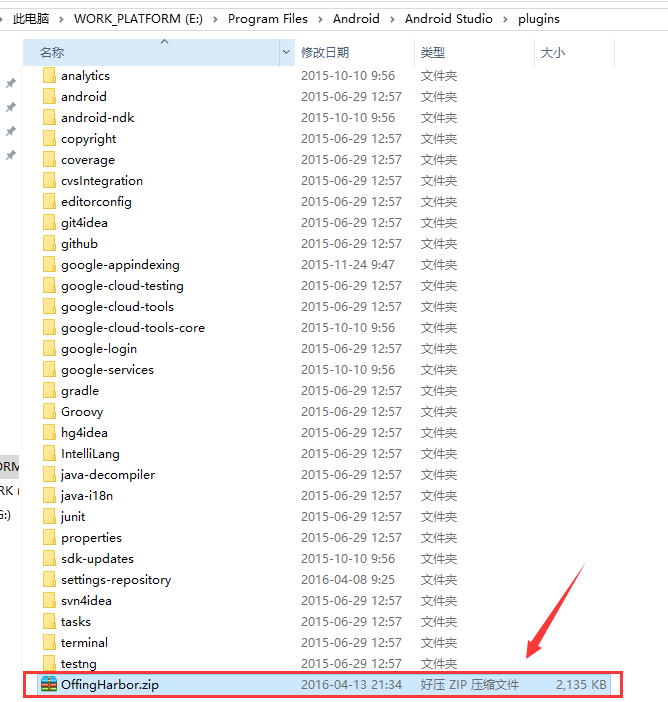
打开AS,
File-Settings 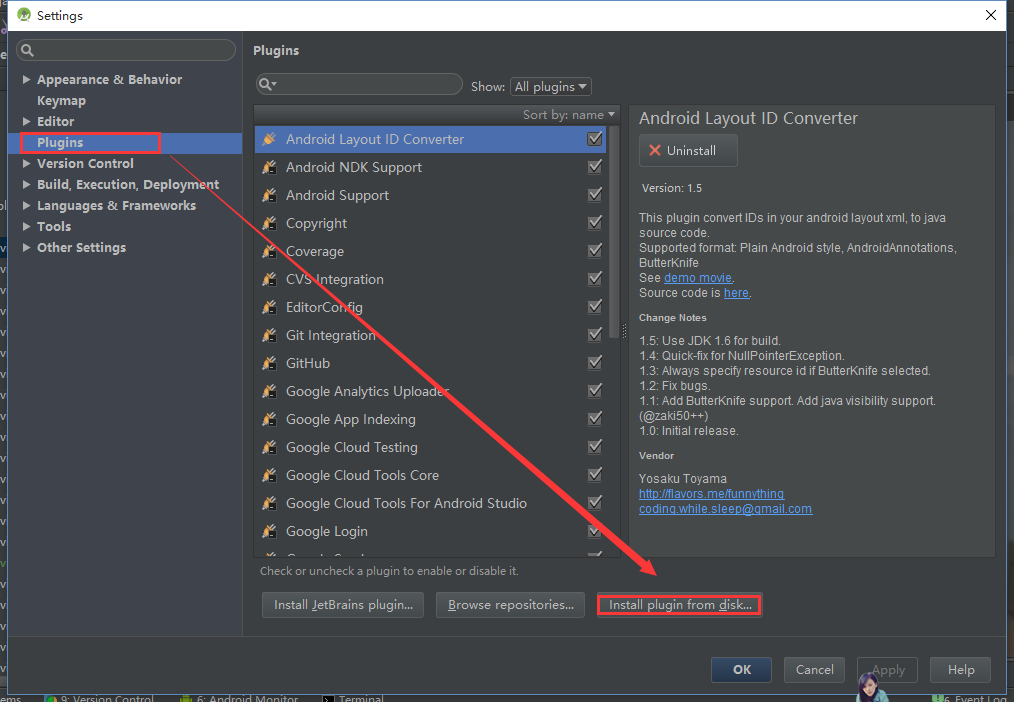
选择 刚才存放的 OffingHarbor.zip ,
重启AndroidStudio即可。
重启之后,可以看到插件中 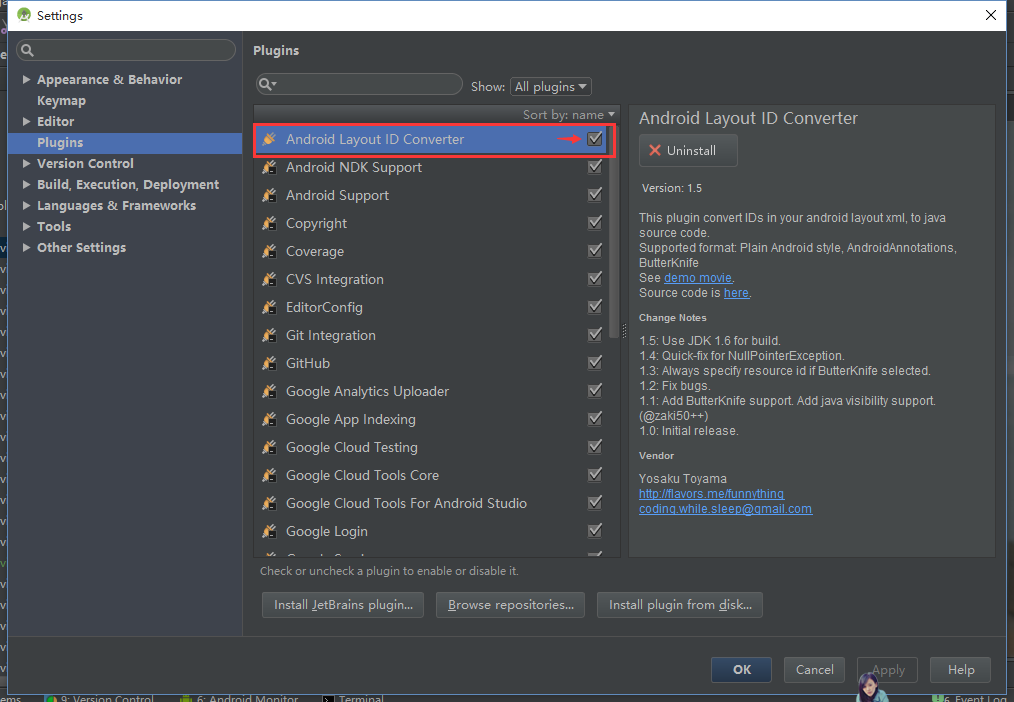
使用
找到一个资源文件 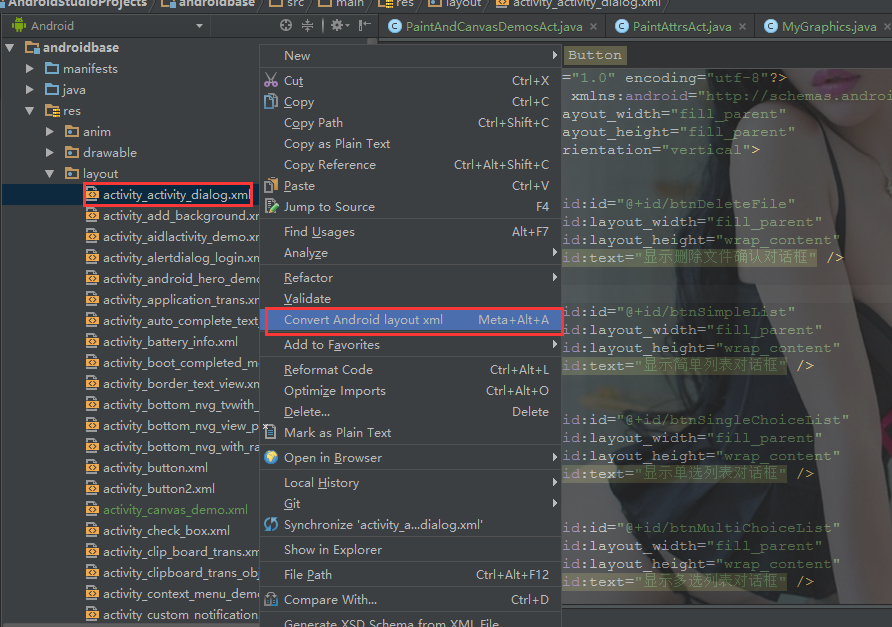
点击之后 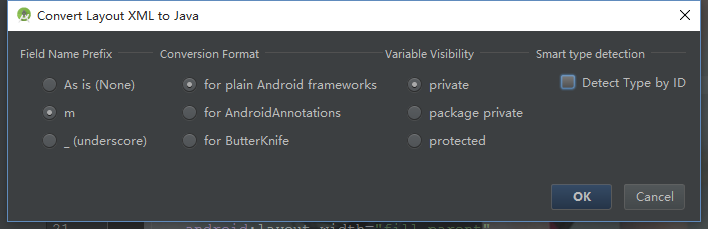
含义解释:
Field Name Prefix:
变量前面的标识: 第一个是 直接就是你xml文件中id的名称
第二个是加个m
第三个是加个_
按照个人编码选择即可
Conversion Format:
转换格式 : 第一个就是普通的findViewbyId
第二个是使用了AndroidAnnotations框架注解的
第三个是使用了ButterKnife框架注解的,
按照自己项目的实际情况选择
Variable Visibillity:
变量的访问权限,按实际情况选择,一般我都选private。
点击OK之后

说明已经被粘贴到了粘贴板,到使用的地方 ctrl+v即可。
比如:
private Button mBtnDeleteFile;
private Button mBtnSimpleList;
private Button mBtnSingleChoiceList;
private Button mBtnMultiChoiceList;
private Button mBtnRemoveDialog;

private void assignViews() {
    mBtnDeleteFile = (Button) findViewById(R.id.btnDeleteFile);
    mBtnSimpleList = (Button) findViewById(R.id.btnSimpleList);
    mBtnSingleChoiceList = (Button) findViewById(R.id.btnSingleChoiceList);
    mBtnMultiChoiceList = (Button) findViewById(R.id.btnMultiChoiceList);
    mBtnRemoveDialog = (Button) findViewById(R.id.btnRemoveDialog);
}
注意事项:在Fragment或者动态加载布局使用View的地方,需要在findViewById前手动添加view.
本文标题:AS插件-Android Layout ID Converter
本文链接:https://blog.quwenai.cn/post/5967.html
版权声明:本文不使用任何协议授权,您可以任何形式自由转载或使用。


还没有评论,来说两句吧...